Choose how the picture fits
Open Options & Controls → Display → Screen Fit. Full width widens the complete picture to fill a wide screen. Original proportions keeps the arcade aspect ratio and can leave bars at the sides. Both modes show the complete game; choose Original proportions if the characters look stretched.
Touch buttons overlay the gameplay. They do not reserve a separate side panel. Rotate the device before arranging a layout so you are editing the orientation you intend to use. The browser toolbar and the device safe areas can still affect the available space.
Make the controls fit your hands
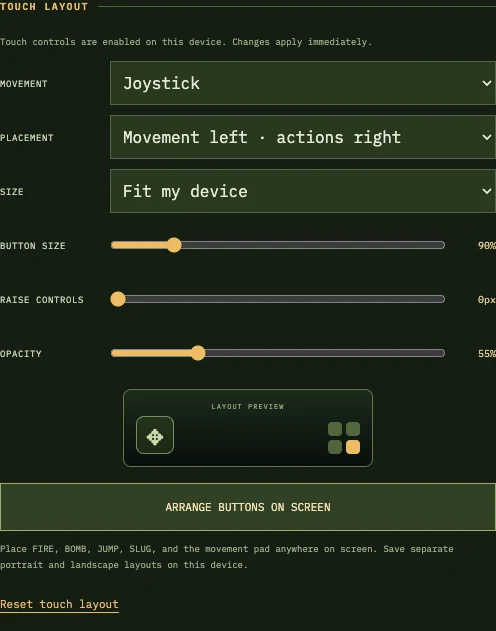
- Open Options & Controls → Touch Layout.
- Choose joystick or directional buttons and set movement to the left or right side.
- Choose a size preset, then adjust Button Size and Opacity. Start with smaller, less opaque buttons if they hide enemies.
- Choose Arrange Buttons on Screen. Drag A / FIRE, B / JUMP, C / BOMB, D / SLUG and the movement pad into comfortable positions.
- Select Save Layout. Portrait and landscape positions are saved separately on this device.
The four action buttons are equal-sized circles: A / FIRE, B / JUMP, C / BOMB and D / SLUG. New layouts start at 70% opacity; you can change their size, opacity and placement, and saved choices stay in effect. Keep enough space between A and B to press both independently. The A button keeps its letter while its action changes to START or CONTINUE when needed; keep it and the small pause button reachable. The pause menu keeps a separate START / CONTINUE option. Reset Touch Layout restores the default arrangement if buttons end up too close to the edge.
Play with more than one finger
Hold the movement pad with one thumb while pressing actions with the other. Lift your fingers before opening settings or switching apps. If movement seems held after a browser interruption, pause, release all touches and resume. Switch to directional buttons to check whether the issue is the joystick position or the game situation.
Aiming and vehicle movement follow the original arcade rules. For example, not every weapon fires diagonally. To leave a Slug, use D / SLUG or hold down and press B / JUMP.
Add the game to the home screen
On iPhone or iPad, open the site in Safari, use the Share menu and choose Add to Home Screen, then Add. Launching from that icon gives the game its own app window. Other browsers may offer an Install Game button or an install option in their menu; the exact availability depends on the browser.
The app does not need a fullscreen button. If a browser tab has limited height, the home-screen version can provide a cleaner view. Learn what is available offline before relying on it without a connection.
Keep play responsive
Let the first game download finish on a stable connection. Keep the game in the foreground and close other demanding tabs or apps. For two-player sessions, use a responsive host device and a network that lets both devices communicate. If sound is missing, interact with the game and check its Sound setting and the device output volume.
If a problem persists, prepare a short device report with the selected title, orientation and steps that reproduce it.